How to design a transcoding ladder that doesn't drive ABR algorithms crazy
If you've spent any time looking at HLS playback in the wild, you've seen it: the stream keeps bouncing between two renditions. Up, down, up, down. The viewer sees a constant shift in quality, sometimes every few seconds. It's worse than staying on a lower rendition the whole time. At least a stable 720p stream feels intentional. A stream that oscillates between 720p and 1080p every 10 seconds feels broken.
The root cause is almost always the same: the encoding ladder has renditions that are too close in bitrate, or the quality gap between rungs doesn't justify the bandwidth jump. The ABR algorithm on the client side can't make up its mind, because the difference between "I can afford this" and "I can't afford this" is razor-thin.
Let's talk about how to fix this properly.
The bits-per-pixel sanity check
Before anything else, you need to understand what bits-per-pixel (BPP) tells you about your ladder. It's the simplest metric to evaluate whether a given bitrate actually makes sense for a given resolution.
The formula is straightforward:
BPP = bitrate / (width × height × framerate)For example, a 1920×1080 stream at 4500 kbps and 30 fps:
BPP = 4,500,000 / (1920 × 1080 × 30) = 0.072Why does this matter? Because BPP tells you the compression density at each rung. If two adjacent rungs in your ladder have very similar BPP values, the viewer won't see a meaningful quality difference, but the ABR algorithm will still try to switch between them. That's how you end up with ping-pong behavior.
A well-designed ladder should have a BPP curve that slopes downward as resolution increases. This reflects a real property of video codecs: they are more efficient at higher resolutions. You need fewer bits per pixel at 1080p to achieve the same perceived quality as at 480p. If your BPP is flat or inconsistent across rungs, something is off.
The "Rule of .70" is a practical reference here. The idea is that when you double the pixel count (for instance going from 720p to 1080p), you should apply roughly 0.70× the BPP of the lower resolution. It's a heuristic, not a law, but it gives you a quick way to spot outliers. If you plot your ladder's BPP values and one rung sticks out, too high or too low compared to its neighbors, that rung will cause problems.
The takeaway: don't just pick bitrates that look like nice round numbers. Compute the BPP for each rung and make sure the curve makes sense. If two adjacent rungs are within 15-20% of each other in BPP, the viewer won't tell them apart, but the ABR heuristic will waste time switching between them.
Spacing your bitrates: the 1.5× rule of thumb
There's no universal standard, but a common engineering guideline is to maintain at least a 1.5× ratio between adjacent bitrate rungs. Some implementations push this to 2×.
Why? Because ABR algorithms use bandwidth estimation to decide which rendition to pick. The estimation has a confidence interval: it's never exact. If two renditions are at 2.5 Mbps and 3.0 Mbps, the BWE can easily oscillate above and below 3.0 Mbps on a mildly variable connection, causing constant switching. If instead the jump is from 2.0 Mbps to 4.0 Mbps, the algorithm needs a much more significant bandwidth change to trigger a switch. The result: more stable playback.
Here's a concrete example. Say you have a clean four-rung ladder:
| Resolution | Bitrate | BPP (30fps) | Ratio to previous |
|---|---|---|---|
| 480×270 | 400 kbps | 0.103 | — |
| 960×540 | 2000 kbps | 0.129 | 5.0× |
| 1280×720 | 2800 kbps | 0.101 | 1.4× |
| 1920×1080 | 4500 kbps | 0.072 | 1.6× |
At first glance it looks reasonable: four resolutions, increasing bitrates. But look at the 540p→720p jump: 2000 kbps to 2800 kbps. That's only a 1.4× ratio. On any connection that hovers around 2.5–3 Mbps (which is most mobile connections), the BWE will constantly cross that threshold. Up, down, up, down. The viewer sees a resolution toggle every few segments.
And here's the other problem: the BPP actually drops from 0.129 at 540p to 0.101 at 720p. So the viewer gets more pixels but less data per pixel. Depending on the content, the 720p rendition might not look meaningfully better than 540p. You've added resolution but lost compression headroom. The ABR algorithm is switching for nothing.
A better version of this ladder would push the 720p bitrate up and adjust 540p down:
| Resolution | Bitrate | BPP (30fps) | Ratio to previous |
|---|---|---|---|
| 480×270 | 400 kbps | 0.103 | — |
| 960×540 | 1500 kbps | 0.096 | 3.75× |
| 1280×720 | 3000 kbps | 0.109 | 2.0× |
| 1920×1080 | 5800 kbps | 0.093 | 1.93× |
Now the 540p→720p jump is a clean 2× ratio. The BWE needs to double before the player even considers switching up. And the BPP actually increases from 0.096 to 0.109, meaning the 720p rung delivers both more pixels and better compression quality. The viewer sees a real improvement. The 720p→1080p jump at 1.93× is equally solid, and the BPP drops only slightly to 0.093, which is the expected efficiency gain at higher resolutions.
Check rate by rate: single-rendition playback testing
Here's something I rarely see teams do, but it's critical: play each rendition individually and watch the whole thing.
It sounds obvious, but most people only test ABR as a complete multi-variant stream. They never isolate a single rendition and play it end-to-end. When you do this, you catch problems that ABR behavior hides:
- A rendition that buffers even at its own declared bitrate (because the declared BANDWIDTH in the playlist is too low compared to actual peak bitrate)
- A rendition where the encoder struggled and produced visible artifacts on certain scenes
- A rendition where the framerate drops or stutters because the resolution/bitrate combination is too demanding for the target device's decoder
To test this, you can force single-rendition playback in several ways:
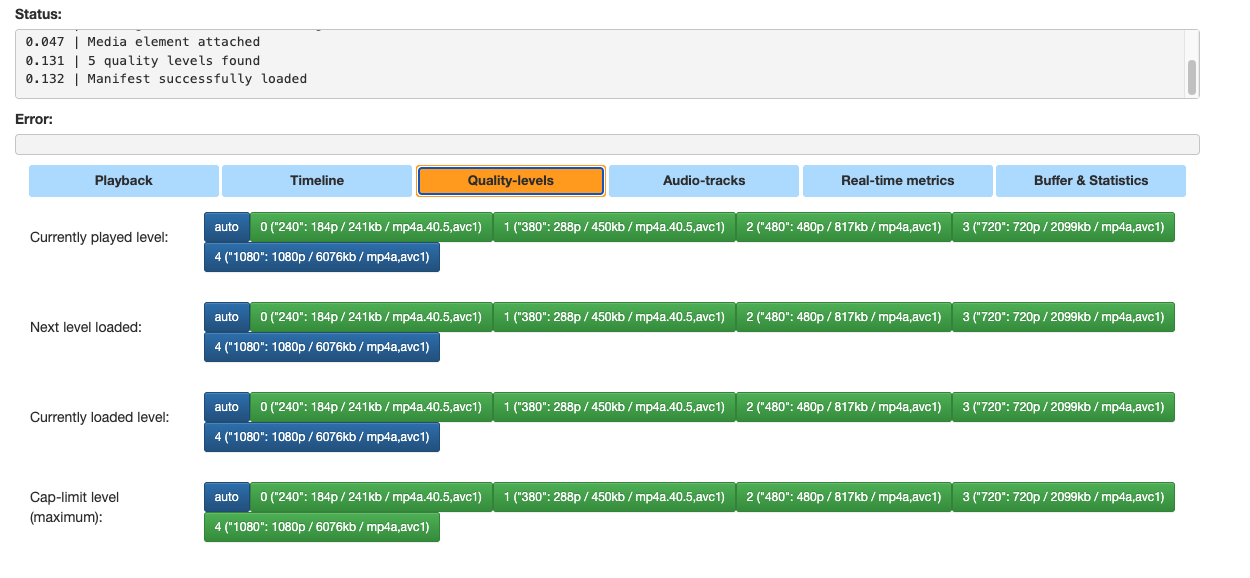
With hls.js demo page: Load your multi-variant stream, then in the quality selector dropdown, manually pin each level one at a time. The hls.js demo at hlsjs.video-dev.org/demo/ exposes all quality levels and lets you override ABR. Play each one for at least a few minutes of representative content. Watch for dropped frames in the "Buffer & Statistics" tab.
With AVPlayer on Apple platforms: Use preferredPeakBitRate and preferredMaximumResolution on AVPlayerItem to clamp playback to a single rendition. Or even simpler: create a test playlist that only includes one variant.
With ffprobe or mediainfo: Before you even play anything, check the actual bitrate statistics of each rendition. The BANDWIDTH value in your master playlist must account for the peak, not just the average. If your VBR encoding has spikes 40% above average, your declared BANDWIDTH needs to reflect that.
If a single rendition can't play smoothly at its own declared bitrate, it will absolutely cause problems in ABR mode. The ABR algorithm selects that rendition thinking it has enough bandwidth, then hits a VBR spike, stalls, drops back down, recovers, selects that rendition again. Ping-pong.
Segment duration: your ABR switching clock
There's another factor that people tend to overlook: segment duration directly controls how often the ABR algorithm gets to make a decision. Each segment boundary is a potential switching point. So if you use 2-second segments, the player can re-evaluate and switch up to 30 times per minute. With 6-second segments, that drops to 10 times per minute. With 10-second segments, only 6.
This matters a lot when your ladder already has tight bitrate spacing. Short segments combined with close bitrate rungs is the worst combination: you're giving the ABR algorithm maximum opportunities to make marginal switches that the viewer doesn't need to see.
Conversely, longer segments act as a natural damper on oscillation. Even if the bandwidth estimation fluctuates, the player has to commit to its current rendition for the duration of the segment it just fetched. By the time the next decision point arrives, the BWE may have stabilized.
The HLS spec doesn't mandate a specific duration, but Apple's authoring guidelines recommend a target of 6 seconds. In practice:
- 2-second segments make sense for low-latency live where fast start and quick adaptation are critical. But you need a well-spaced ladder to avoid constant toggling.
- 6-second segments are a good default for VOD and standard live. They give the ABR algorithm enough time to build a reliable bandwidth estimate between decisions.
- 10-second segments are very stable but sluggish to adapt. If bandwidth drops sharply, the player is stuck downloading a high-bitrate segment it may not be able to finish in time.
There's also a subtlety with VBR encoding: bitrate variance within a segment increases with segment duration. A 10-second segment of a scene transition, going from a static shot to an action sequence, can have massive bitrate fluctuation internally. If the declared BANDWIDTH in the playlist matches the overall average but not the per-segment peaks, the ABR algorithm gets surprised. Shorter segments tend to have more consistent per-segment bitrates, which makes the BWE more accurate.
The bottom line: if you're seeing oscillation and your ladder spacing looks fine, check your segment duration. Going from 4 seconds to 6 seconds might be all you need to calm things down.
Use Network Link Conditioner to simulate real conditions
Testing ABR on a stable 100 Mbps fiber connection is useless. You need to simulate real-world conditions, and Apple's Network Link Conditioner is the best tool for this on macOS.
You get it from Apple's Additional Tools for Xcode package: in Xcode, go to Xcode > Open Developer Tool > More Developer Tools, which takes you to the Apple developer downloads page. Search for "Additional Tools for Xcode", download the DMG for your Xcode version, open it, and in the Hardware folder you'll find Network Link Conditioner.prefPane. Double-click to install. It then appears as a pane in System Settings (or System Preferences on older macOS). It lets you define bandwidth profiles with specific throughput, latency, packet loss rate, and DNS delay.
Create custom profiles that matter:
- Mediocre 4G: 8 Mbps down / 2 Mbps up, 80ms RTT, 1% packet loss
- Bad WiFi: 3 Mbps down / 1 Mbps up, 150ms RTT, 3% packet loss
- Transitional: Start at 15 Mbps, manually switch to 2 Mbps mid-playback
That last one is the killer test. If your ladder is well-designed, the player should drop smoothly to a lower rendition within a few seconds and stay there. If it starts oscillating between two renditions, your rungs are too close at the bandwidth boundary.
On iOS devices, Network Link Conditioner is available through the Developer settings (enable it in Settings > Developer after connecting the device to Xcode).
The goal of these tests is not just "does it buffer?" but "does the stream settle on a rendition and stay there?" A good ABR experience is one where switches are rare and decisive. The viewer sees the quality change once, and then it stabilizes.
Use Apple's AVMetrics to monitor switching in production
Starting with iOS 18, Apple introduced the AVMetrics API in AVFoundation. This is a game-changer for monitoring ABR behavior in the field.
The key event type for our purpose is the variant switch event. Every time AVPlayer switches between HLS variants, you get a metric event that tells you what it switched from, what it switched to, and the media rendition details. You also get stall events when the player rebuffers, and a summary event at the end of the session with overall KPIs.
Here's the Swift pattern:
let playerItem: AVPlayerItem = // your configured item

let switchMetrics = playerItem.metrics(
    forType: AVMetricPlayerItemVariantSwitchEvent.self
)
let stallMetrics = playerItem.metrics(
    forType: AVMetricPlayerItemStallEvent.self
)

for await (event, _) in switchMetrics.chronologicalMerge(with: stallMetrics) {
    switch event {
    case let switchEvent as AVMetricPlayerItemVariantSwitchEvent:
        // Log: from variant, to variant, timestamp
        await analytics.logSwitch(switchEvent)
    case let stallEvent as AVMetricPlayerItemStallEvent:
        // Log: stall duration, variant at time of stall
        await analytics.logStall(stallEvent)
    default:
        break
    }
}
What you're looking for in your analytics:
- Switch frequency: If the average session has more than 3-4 switches per minute, your ladder has problems. Healthy streams switch maybe once or twice in a session, typically at startup.
- Oscillation patterns: Two renditions that keep alternating. Classic sign of rungs that are too close.
- Stalls correlated with upswitch: If stalls happen right after switching to a higher rendition, your BANDWIDTH declarations in the playlist are too low.
For WWDC 2025, Apple expanded AVMetrics to include media rendition information in variant switch events, making it easier to see exactly which audio/video/subtitle tracks were active during the switch.
If you're not on Apple platforms, similar data can be collected from hls.js via the LEVEL_SWITCHED and FRAG_BUFFERED events. Same principles apply.
Experiment with hls.js: tune the ABR behavior
The hls.js demo page (hlsjs.video-dev.org/demo/) is the best free tool for experimenting with ABR switching behavior on the web. Load your HLS stream and use the "Real-time metrics" and "Buffer & Statistics" panels to observe what happens.
Key hls.js configuration knobs to experiment with:
abrEwmaFastVoDandabrEwmaSlowVoD: These control the Exponential Weighted Moving Average for bandwidth estimation. Lower values make the player react faster to bandwidth changes (more aggressive switching). Higher values make it more conservative (slower to switch, more stable). If you're seeing too much switching, try increasing these.abrBandWidthFactor(default: 0.95) andabrBandWidthUpFactor(default: 0.7): These are safety margins. The player selects a rendition whose bitrate is belowestimatedBandwidth × factor. The upswitch factor is deliberately lower, meaning the player is more conservative about switching up than switching down. If your ladder has tight spacing, you may want to lowerabrBandWidthUpFactorto 0.6 to reduce oscillation.abrMaxWithRealBitrate(default: false): When enabled, the ABR controller uses the actual measured bitrate of fetched segments rather than the declared BANDWIDTH from the playlist. This is particularly useful if your declared bitrates are inaccurate.
But here's the thing: if you need to heavily tune these parameters to get stable playback, your ladder is probably wrong. These knobs are fine-tuning. The encoding ladder itself is the foundation. A well-spaced ladder works well with default ABR settings on any player.
Practical recommendations
If I had to summarize this into a checklist:
- Compute BPP for every rung in your ladder. Make sure it decreases as resolution increases. Remove or adjust any rung where BPP is within 15% of its neighbor.
- Maintain at least 1.5× bitrate ratio between adjacent rungs. Prefer 2× when possible, especially in the lower half of the ladder where bandwidth fluctuation has the most impact.
- Test each rendition in isolation. Force single-variant playback and watch representative content end-to-end. If it can't play smoothly alone, it won't play smoothly in ABR.
- Use Network Link Conditioner to simulate bandwidth drops. The stream should settle on a rendition quickly and stay put.
- Check your segment duration. If you're at 2–4 seconds and seeing oscillation, try 6 seconds. Longer segments naturally reduce switching frequency by giving the BWE more time to stabilize between decisions.
- Instrument your player. Use AVMetrics on Apple, hls.js events on the web. Track switch frequency per session. If sessions average more than a handful of switches outside the startup phase, investigate.
- Don't trust declared BANDWIDTH alone. Use
abrMaxWithRealBitratein hls.js or verify with ffprobe that your VBR peaks don't exceed the declared value. - Fewer rungs is often better. A 5-rung ladder with well-spaced renditions will outperform a 10-rung ladder where half the rungs are too close together. The viewer doesn't need 12 quality levels. They need 4 or 5 that each look meaningfully different and play reliably.
The whole point of ABR is that it should be invisible. The viewer shouldn't notice it working. If they do, something is wrong, and nine times out of ten, it's the ladder.
References: